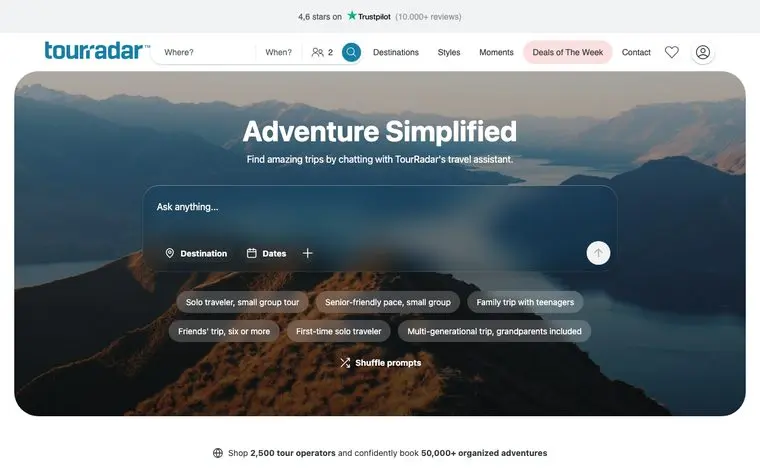
Where?
When?
2

Where to?

Traveling when?

Select departure month

2026

Jan
Feb
Mar
Apr
May
Jun
Jul
Aug
Sep
Oct
Nov
Dec

2027

Jan
Feb
Mar
Apr
May
Jun
Jul
Aug
Sep
Oct
Nov
Dec

2028

Jan
Feb
Mar
Apr
May
Jun
Jul
Aug
Sep
Oct
Nov
Dec

Who is travelling?

Who is travelling?

AdultsAges 18 or above

2

ChildrenUnder 18

0

Connect to TourRadar's MCP server

Note: TourRadar's MCP is a remote server and needs no authentication. Use https://ai.tourradar.com/mcp/main everywhere except ChatGPT, which needs https://ai.tourradar.com/mcp/chatgpt. Menu names in each assistant can change over time, so if a step looks different, check your assistant's own MCP documentation.

Connect Claude to TourRadar

Add TourRadar as a custom connector in Claude:

1.In Claude, go to Settings > Connectors.
2.Click Add custom connector.
3.Enter the name TourRadar and the MCP server URL: https://ai.tourradar.com/mcp/main
4.Click Add. No sign-in is required.

Tip: If you are on a Claude team or enterprise plan and cannot see Add custom connector, your Claude admin needs to enable custom connectors for your organization first, under Organization settings > Connectors.

Connect ChatGPT to TourRadar

ChatGPT uses a separate, restricted TourRadar endpoint. Use https://ai.tourradar.com/mcp/chatgpt, not the main URL.

1.In ChatGPT, go to Settings > Connectors.
2.If you do not see a Create button, open Advanced settings and turn on Developer mode.
3.Click Create and enter: Name TourRadar Tours, MCP Server URLhttps://ai.tourradar.com/mcp/chatgpt, Authentication No authentication.
4.Tick I trust this application and click Create.
5.In any chat, open Tools > Connected Apps and check that TourRadar Tours is switched on.

Caution: Custom connectors work on ChatGPT web, not mobile. On a workspace plan, only an admin or owner can turn on developer mode.

Connect Gemini to TourRadar

Connect TourRadar to Gemini through the Gemini CLI by adding the server to your settings file.

1.Open or create ~/.gemini/settings.json.
2.Add TourRadar under mcpServers:
{
  "mcpServers": {
    "tourradar": {
      "httpUrl": "https://ai.tourradar.com/mcp/main"
    }
  }
}
3.Restart the Gemini CLI.

Connect VS Code to TourRadar

Add TourRadar from the command line with the code --add-mcp command.

1.In your terminal, run:
code --add-mcp '{"name":"tourradar","type":"http","url":"https://ai.tourradar.com/mcp/main"}'
2.Reload VS Code if prompted.

Tip: You need the code command available in your terminal. In VS Code, run Shell Command: Install 'code' command in PATH from the Command Palette first.

Connect Cursor to TourRadar

Add TourRadar to Cursor's MCP settings. Use ~/.cursor/mcp.json to make it available in every project, or .cursor/mcp.json in a project folder to scope it to that project.

1.Open or create ~/.cursor/mcp.json.
2.Add TourRadar under mcpServers:
{
  "mcpServers": {
    "tourradar": {
      "url": "https://ai.tourradar.com/mcp/main"
    }
  }
}
3.Reload Cursor, then open Settings > MCP and check that TourRadar is connected.

Connect from the command line

Coding agents that run in the terminal can add TourRadar with a single command.

For Claude Code:

claude mcp add --transport http tourradar https://ai.tourradar.com/mcp/main

For Codex:

codex mcp add tourradar --url https://ai.tourradar.com/mcp/main

Ask your first question

Once connected, try one of these:

"Find me tours in Austria in September 2026."
"Two weeks in Patagonia, small group, under €4,000."
"Tell me more about the Europe Escape tour. What's included and how hard is the walking?"
"What's the difference between your Iceland tours in winter and summer?"
"Send me the brochure for that one."

Built with TourRadar's MCP

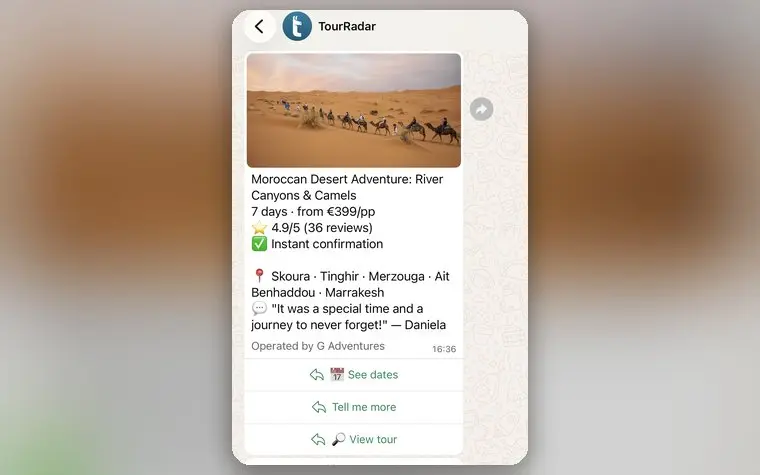
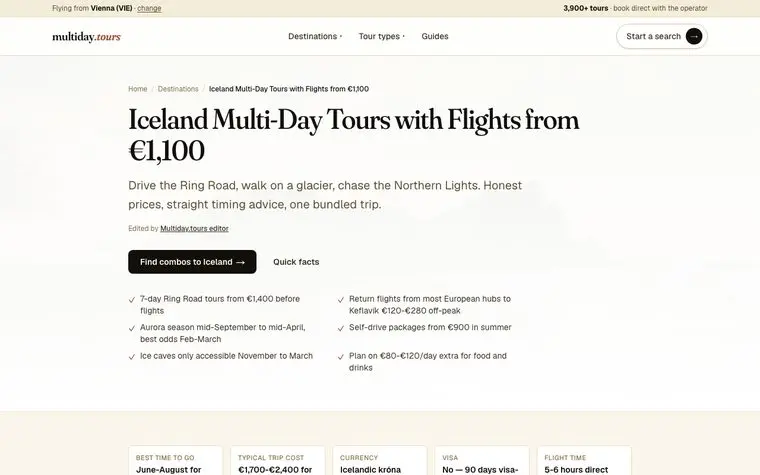
The server is the same one our own team builds on. A few of the things they have made with it:
Things to know

Keep the following in mind after you connect your assistant to TourRadar:

You can go further than just search. Most travel connectors stop at finding things. TourRadar's lets an assistant check live departures and real pricing, then start a booking from inside the conversation. You complete and pay on TourRadar, on the web or in the app.
ChatGPT is more limited than the other assistants. ChatGPT's connector restricts what a server can expose, so the TourRadar ChatGPT endpoint offers a reduced set of tools. In our testing it answers an operator question accurately, then on follow-up questions it sometimes fills in details from its own training rather than asking us again. Claude and Cursor use the unrestricted server and give a noticeably better experience for detailed itinerary questions.
Always confirm before you pay. Prices and availability change constantly. Whatever an assistant tells you should match what you see at the booking step.
Brochure downloads need an allowlist in some assistants. TourRadar delivers brochures as a download link. If your assistant restricts outbound domains, a brochure can generate but the download will not open.

Note: TourRadar's MCP is public and read-and-book only. There is no account, no API key, and no personal data attached to your connection. It exposes the same tour inventory that is public on tourradar.com.

Where to go next

Try conversational search in the browser, with no setup: www.tourradar.com/mlp/conversational-search
Building on TourRadar inventory? The server is open and needs no key. Get in touch at partner-solutions@tourradar.com and tell us what you are making.