Discover Multi-Day Tours in ChatGPT, Instagram, and More
Search tours, dive deep into itineraries, ask about destination info, and book your next multi-day tour using AI tools and social media
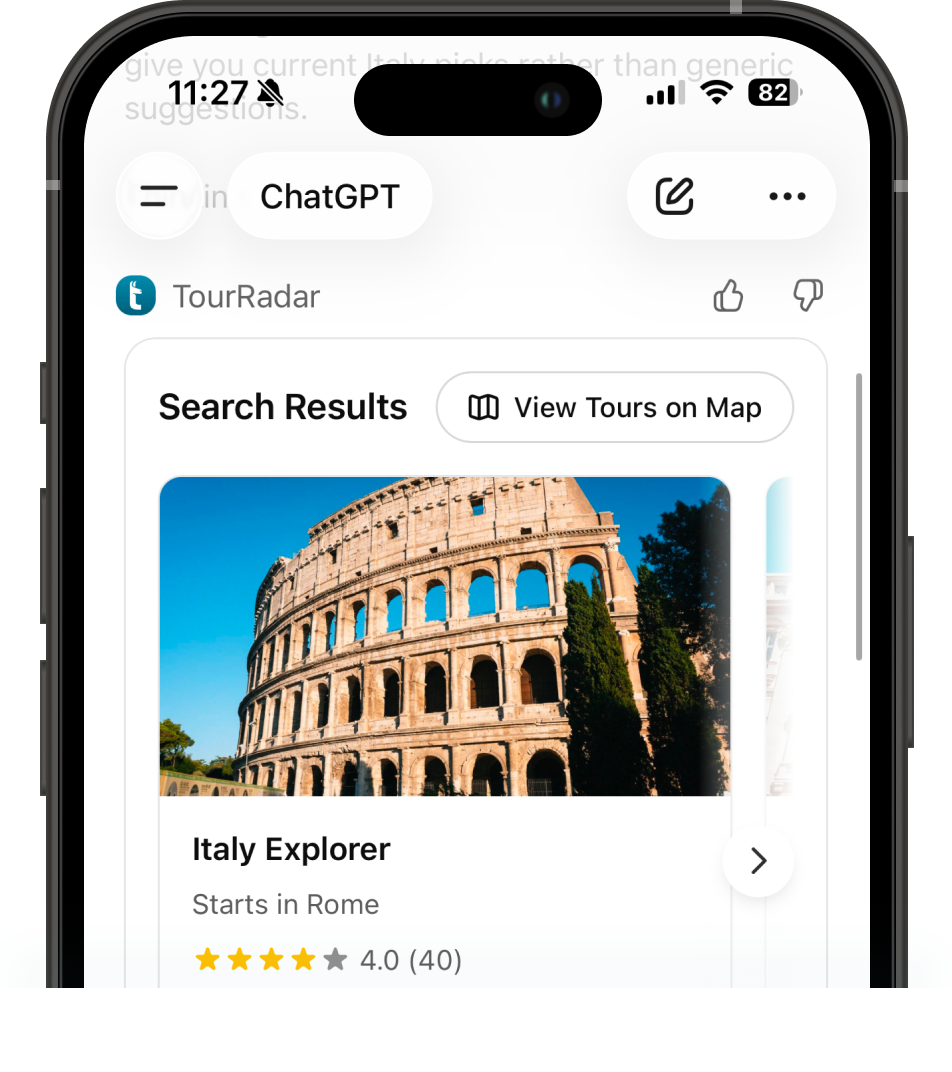
With our TourRadar CustomGPT, you can chat about your dream trip, whether it’s hiking in Peru or cruising the Nile, and get curated multi-day tour options in seconds.
ChatGPT
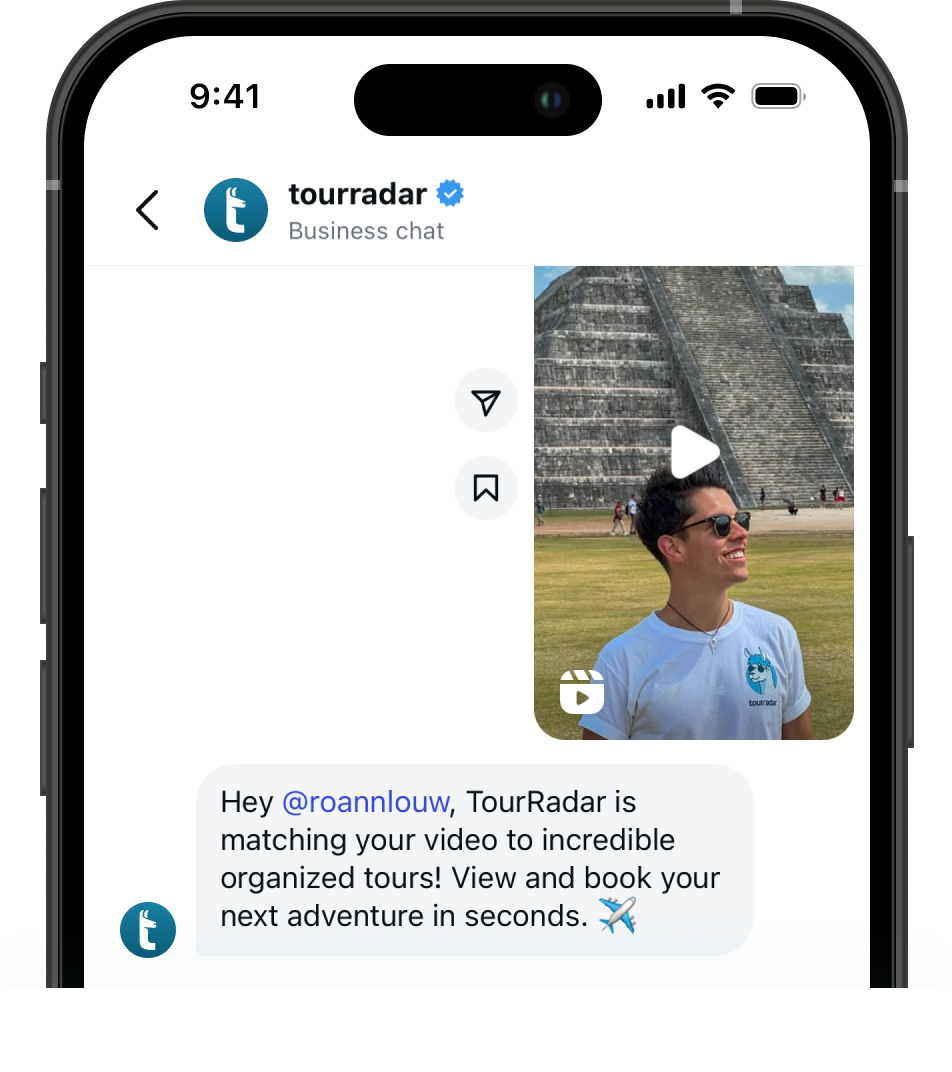
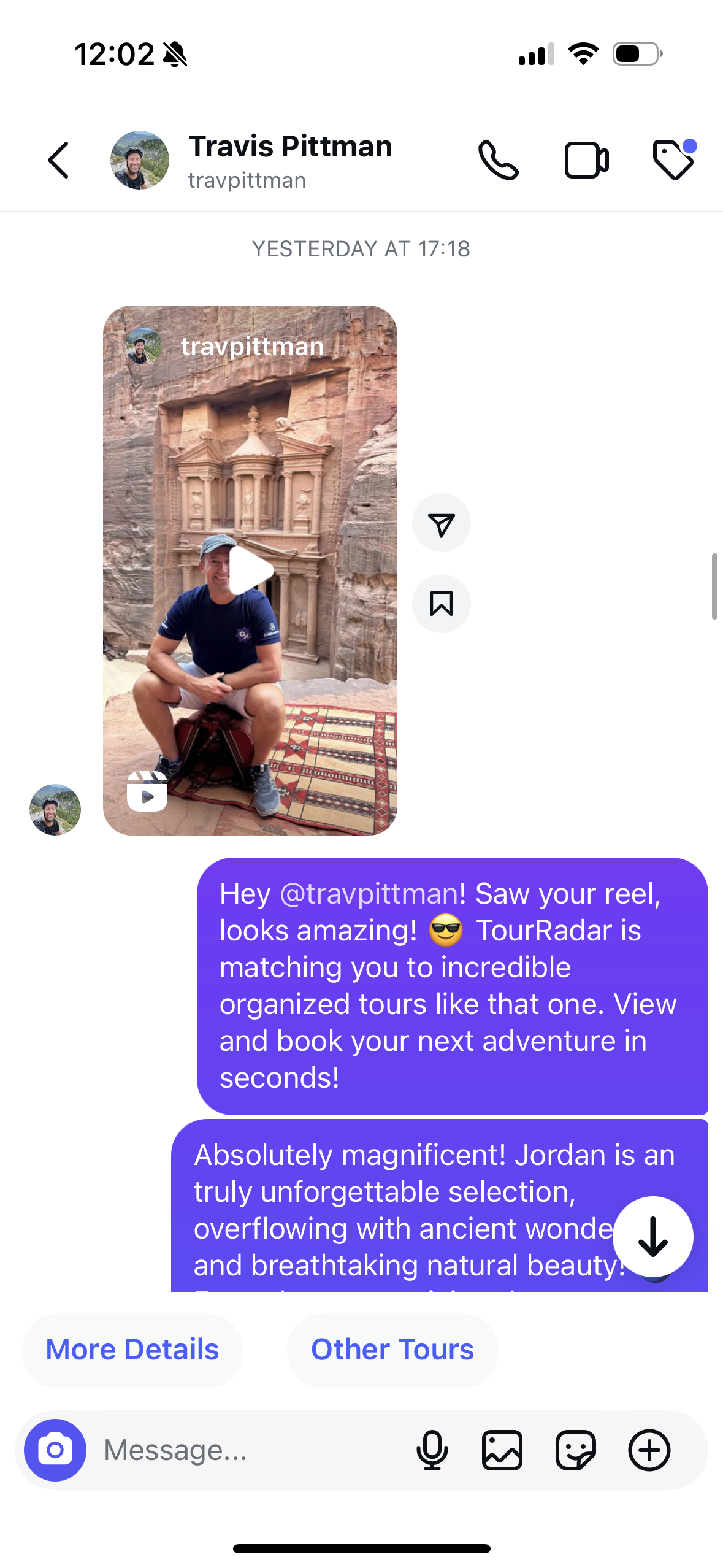
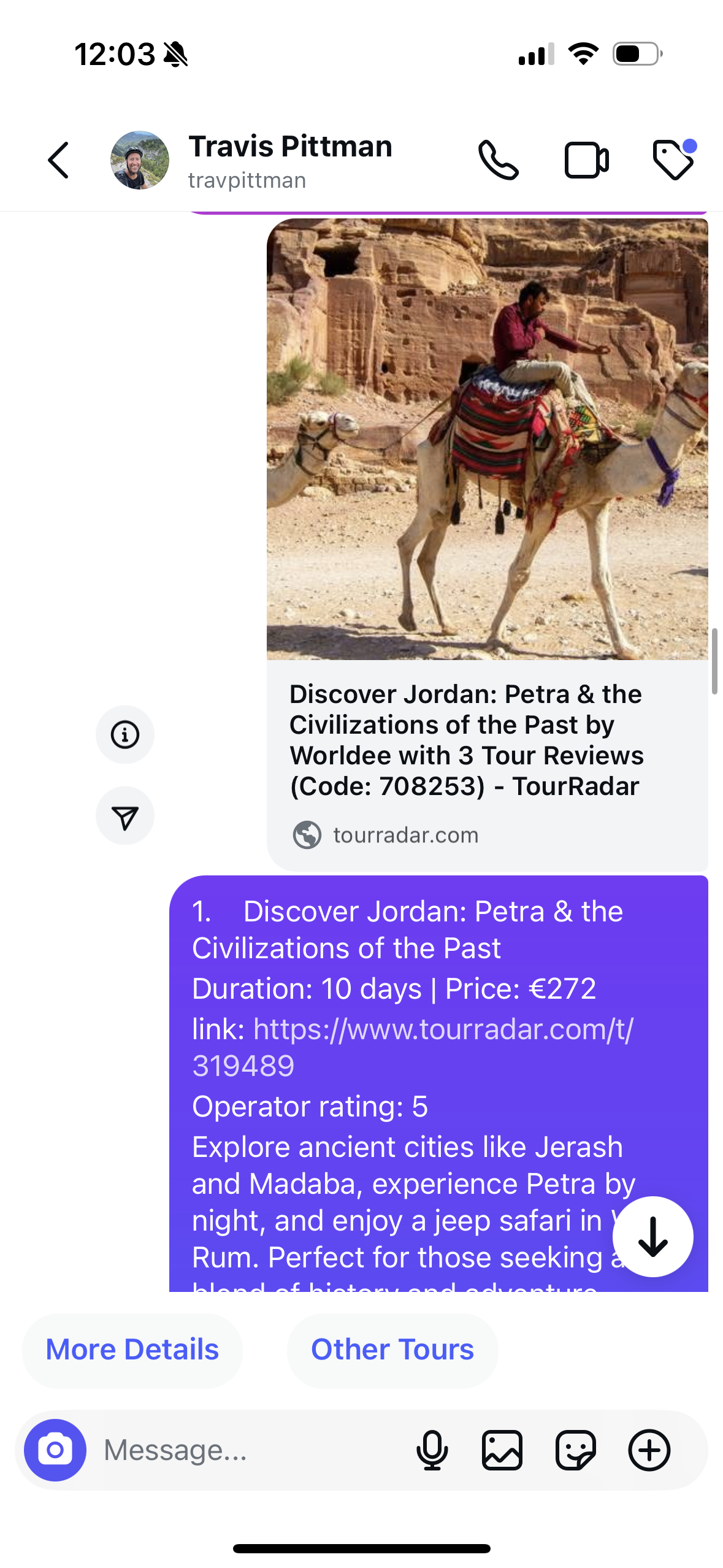
See a reel you love? Our Trip Recommender allows you to instantly explore multi-day tours that match the destination and book straight from Instagram.
MCP Server
Connects 50,000+ multi-day trips to AI platforms, OTAs, and developers. Discover and book directly in ChatGPT, Gemini, Claude, Perplexity, and more.
See details below
New Ways to Discover Tours. Your Choice.
How to use the Trip Recommender on Instagram
1. Send a reel or story of the destination you want to visit to the TourRadar Instagram account
2. Using AI, we determine the location and/or travel style
3. We will send you relevant tour recommendations
How to set up the MCP server in ChatGPT
1. Open ChatGPT
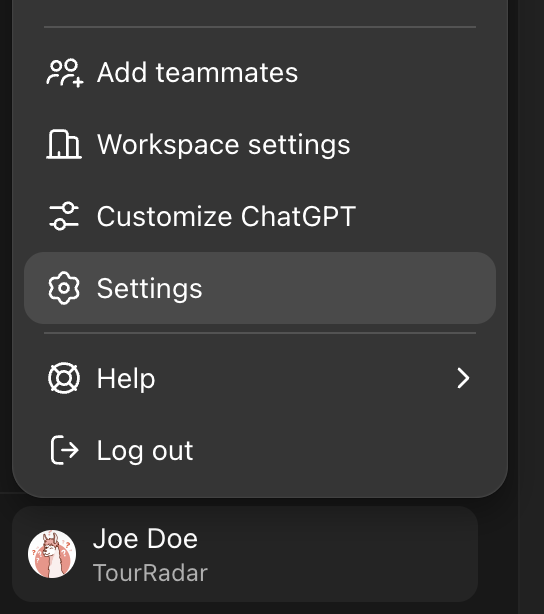
2. Go to Settings → Connectors
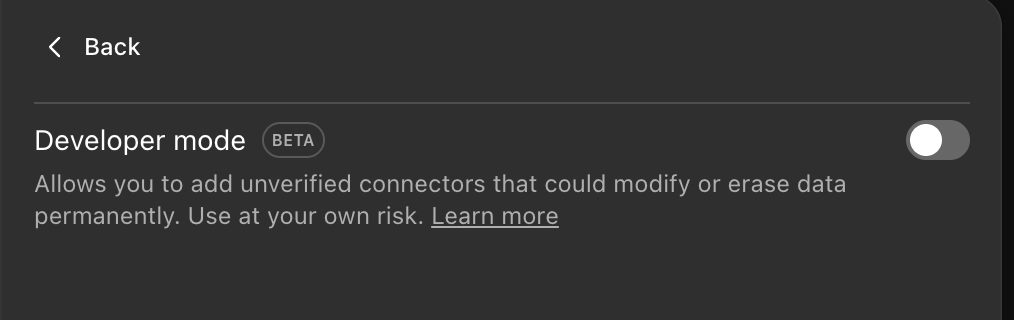
3. If you do not see the Create button, go to Advanced settings → enable Developer Mode
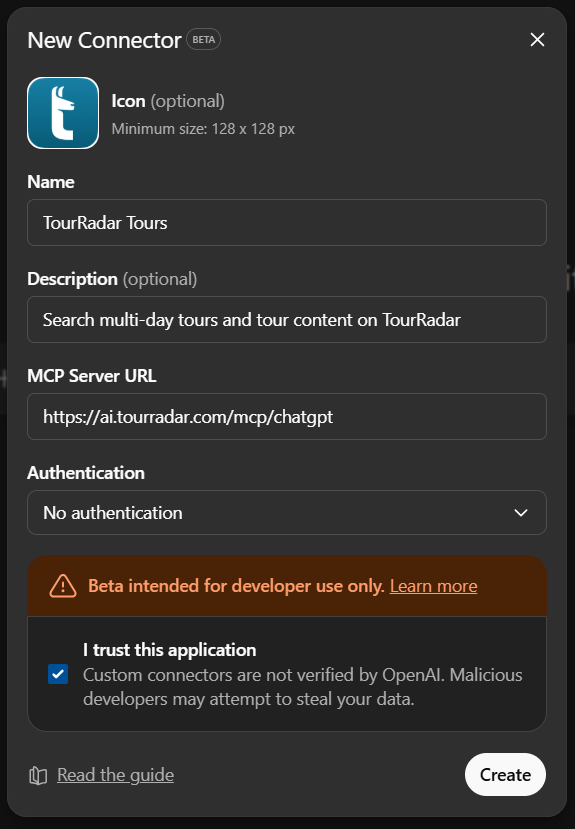
4. Click Create and fill in the form like this:
Name: TourRadar Tours
Description (optional): Search multi-day tours and tour content on TourRadar
MCP Server URL: https://ai.tourradar.com/mcp/chatgpt
Authentication: No authentication
Check: “I trust this application“
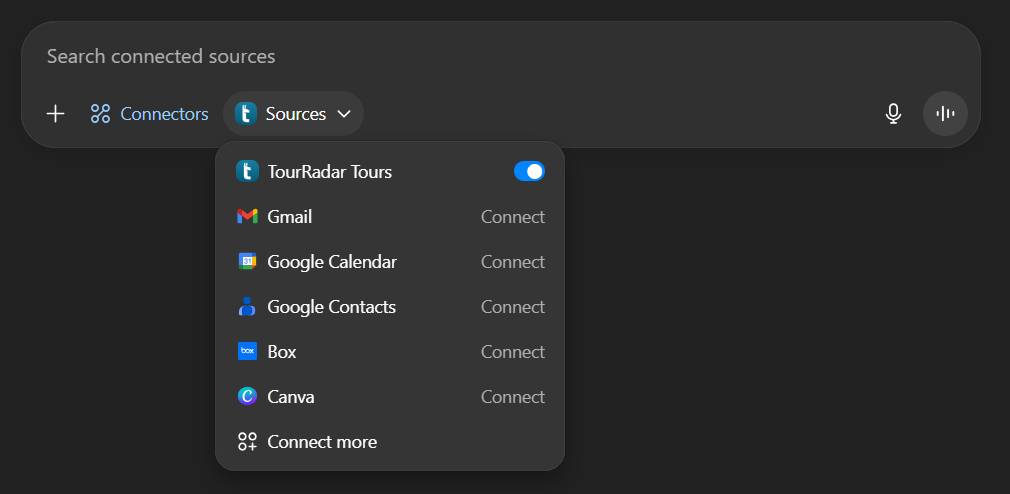
5. Start a new chat and select Tools → Connected Apps. Make sure TourRadar Tours is enabled
6. Done! You can now start asking questions
How to set up the MCP server in the Cursor App
1. Open the Cursor application
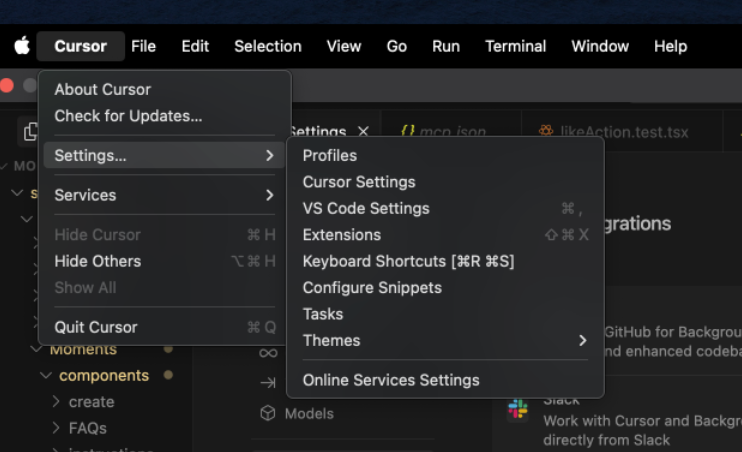
2. Go to Cursor → Settings → Cursor Settings
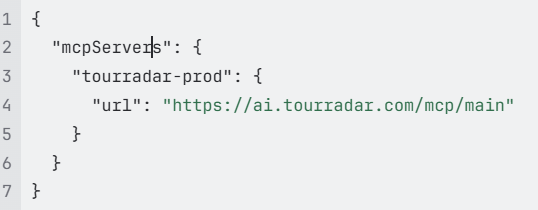
4. In the editor, set up the configuration like this:
3. Go to Tools & Integrations → Add Custom MCP
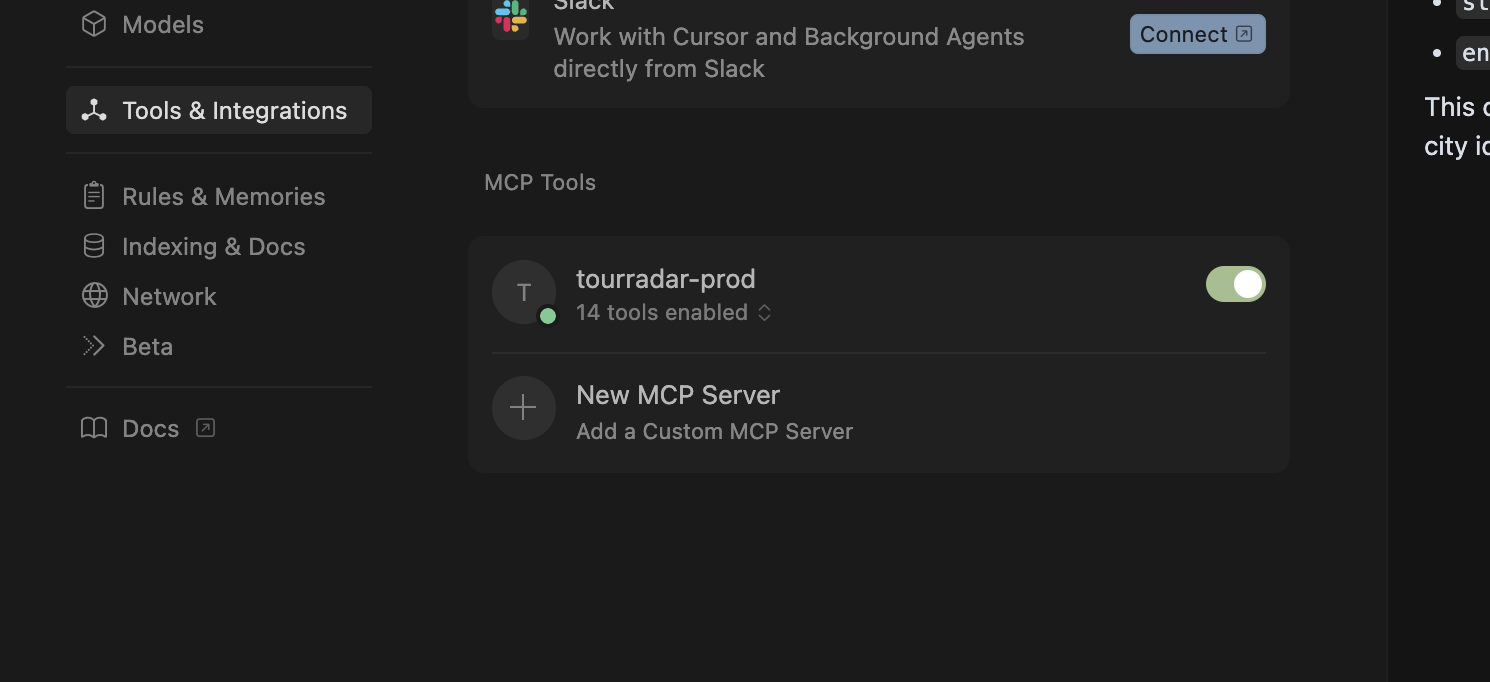
5. Go back to Tools & Integrations and make sure the MCP server is enabled:
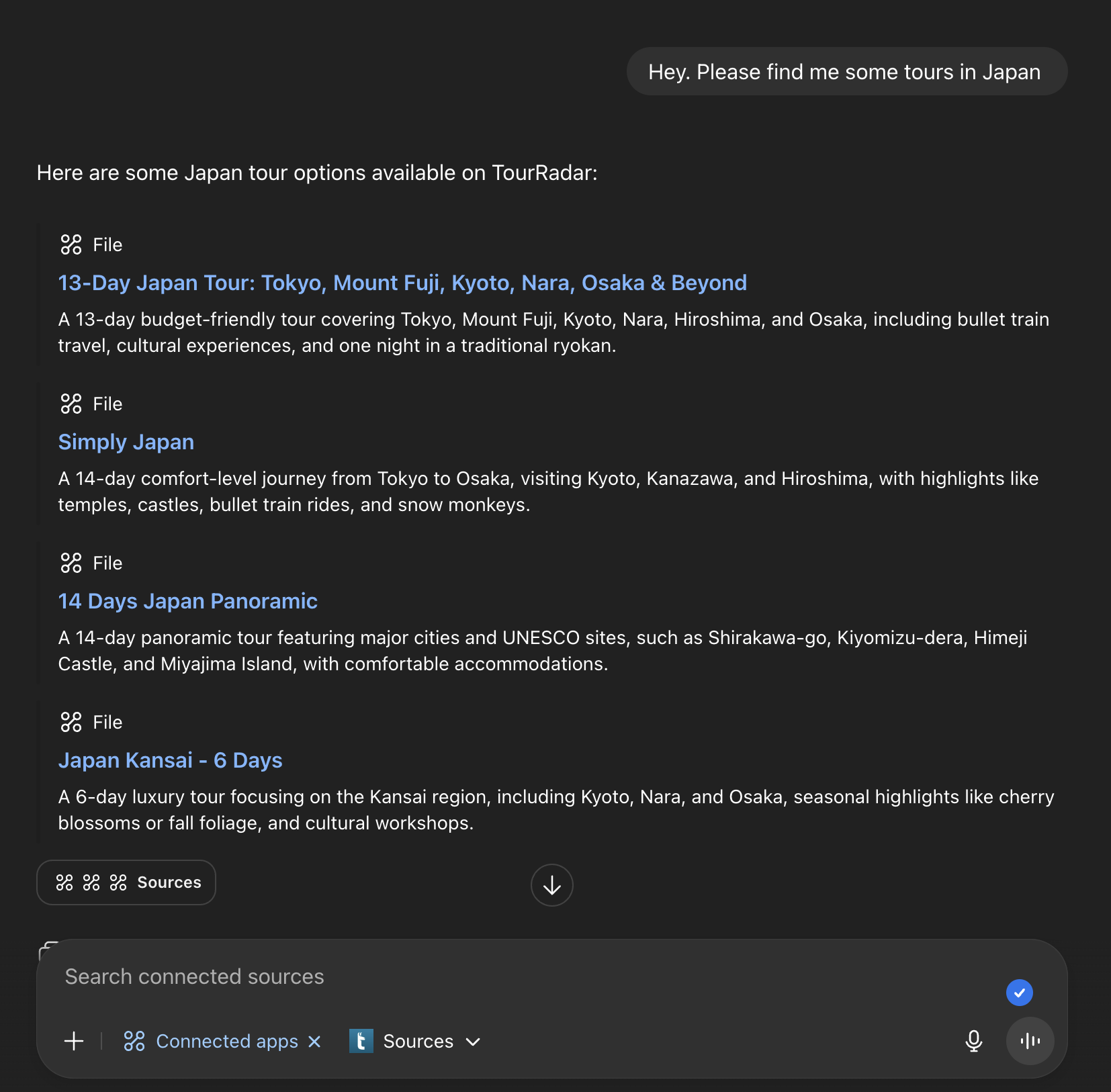
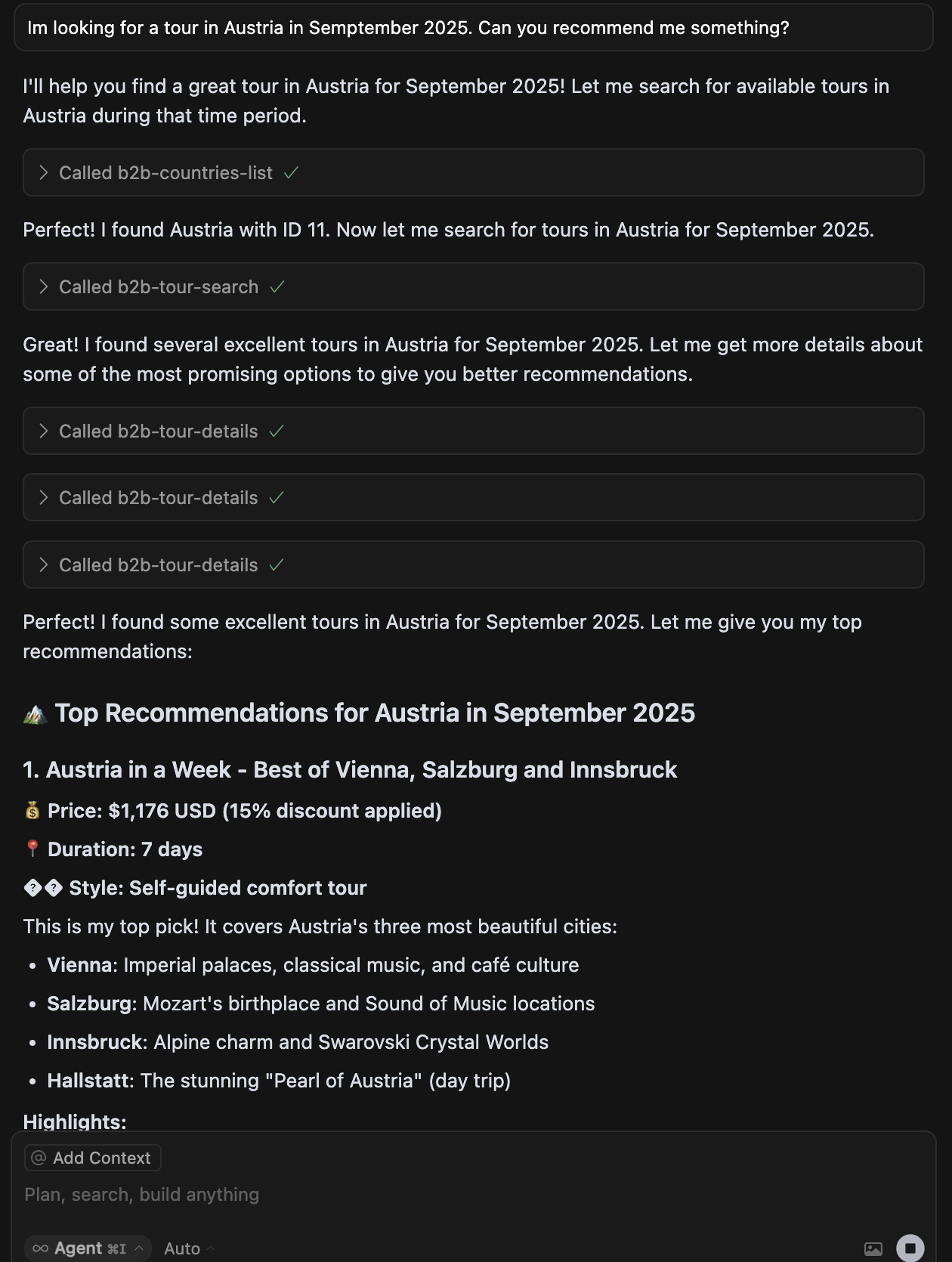
6. Done! Now, you can search for adventures, like this:
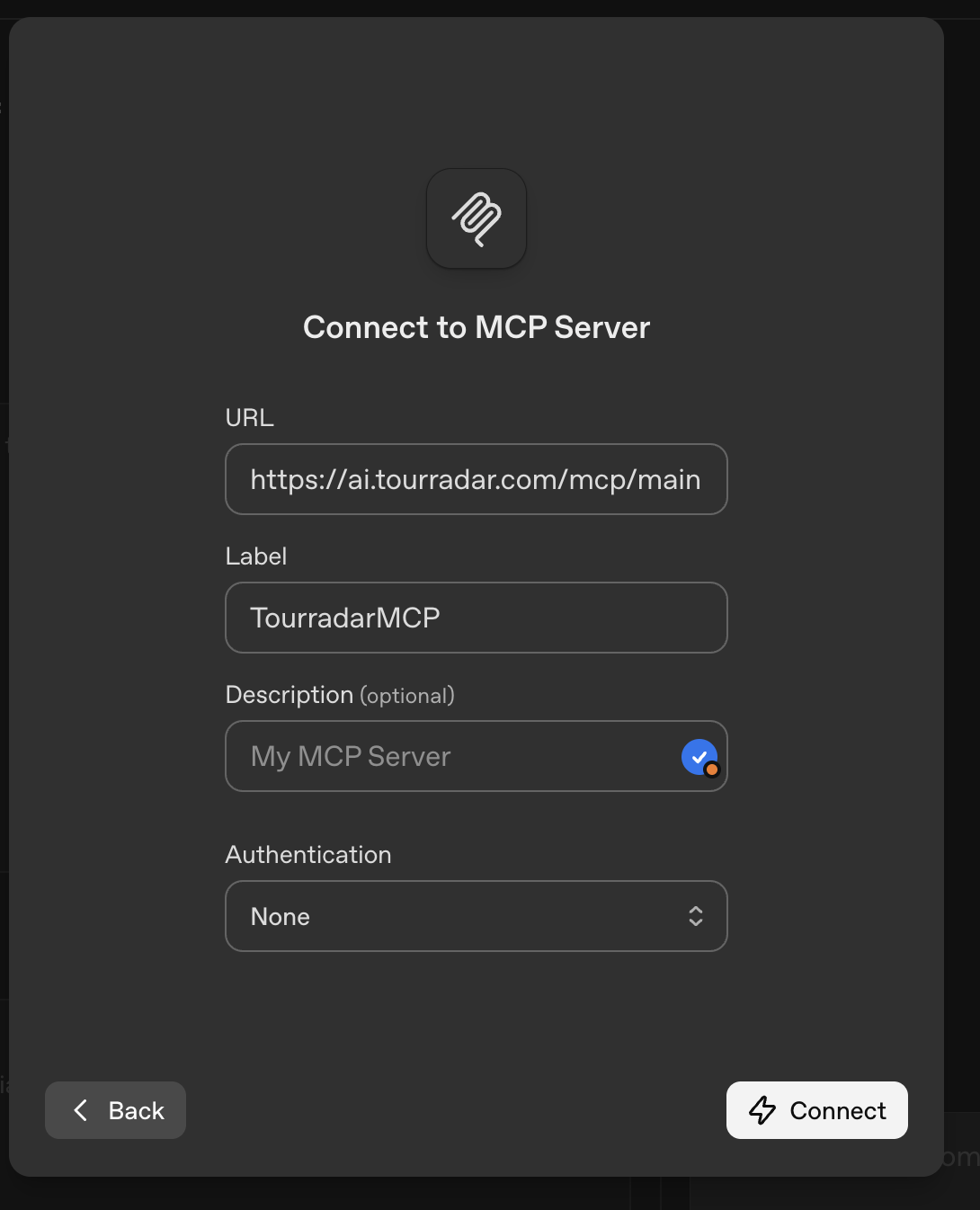
How to set up the MCP server on ChatGPT via the OpenAI Console
1. Open the OpenAI console
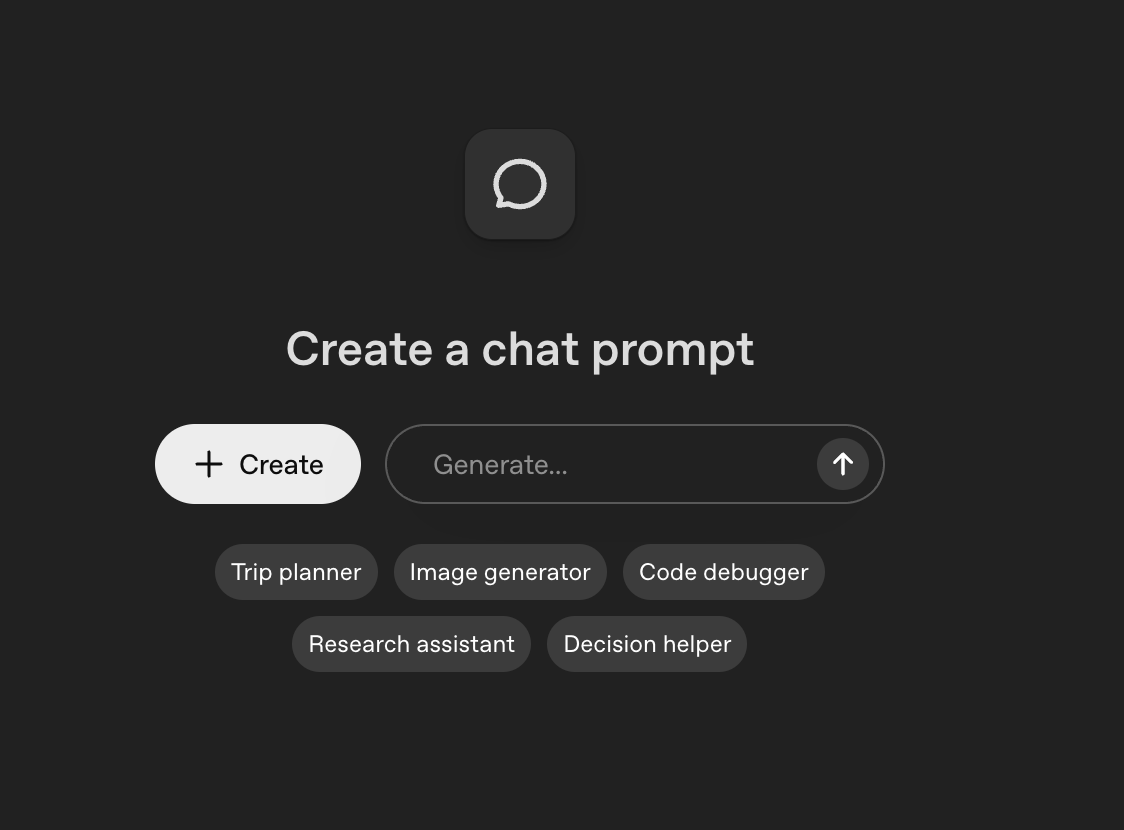
2. Create a new chat
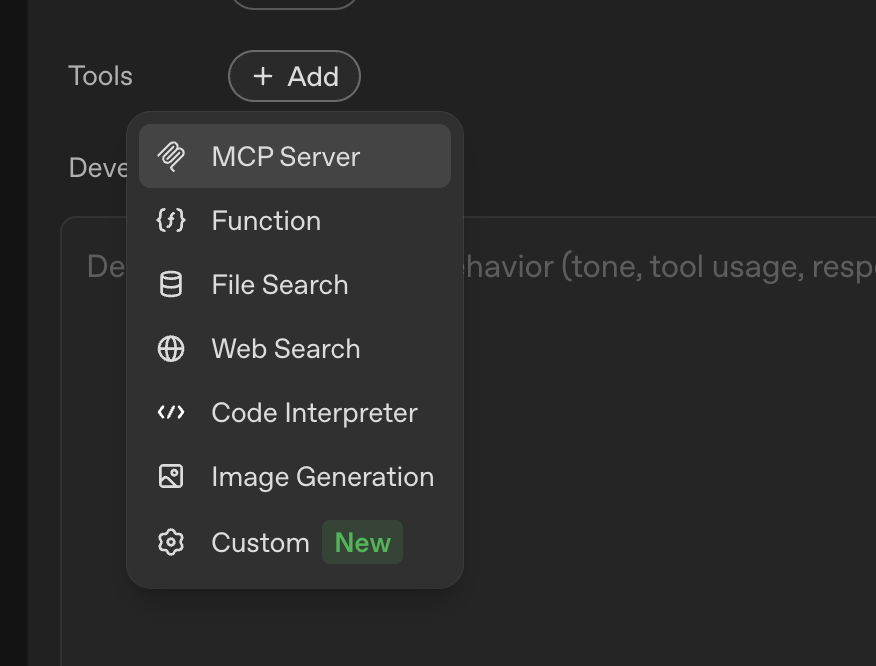
3. In the list of tools, select MCP Server
4. Fill in the form like this:
URL: https://ai.tourradar.com/mcp/main
Label: TourRadarMCP
Description (optional): My MCP Server
Authentication: None
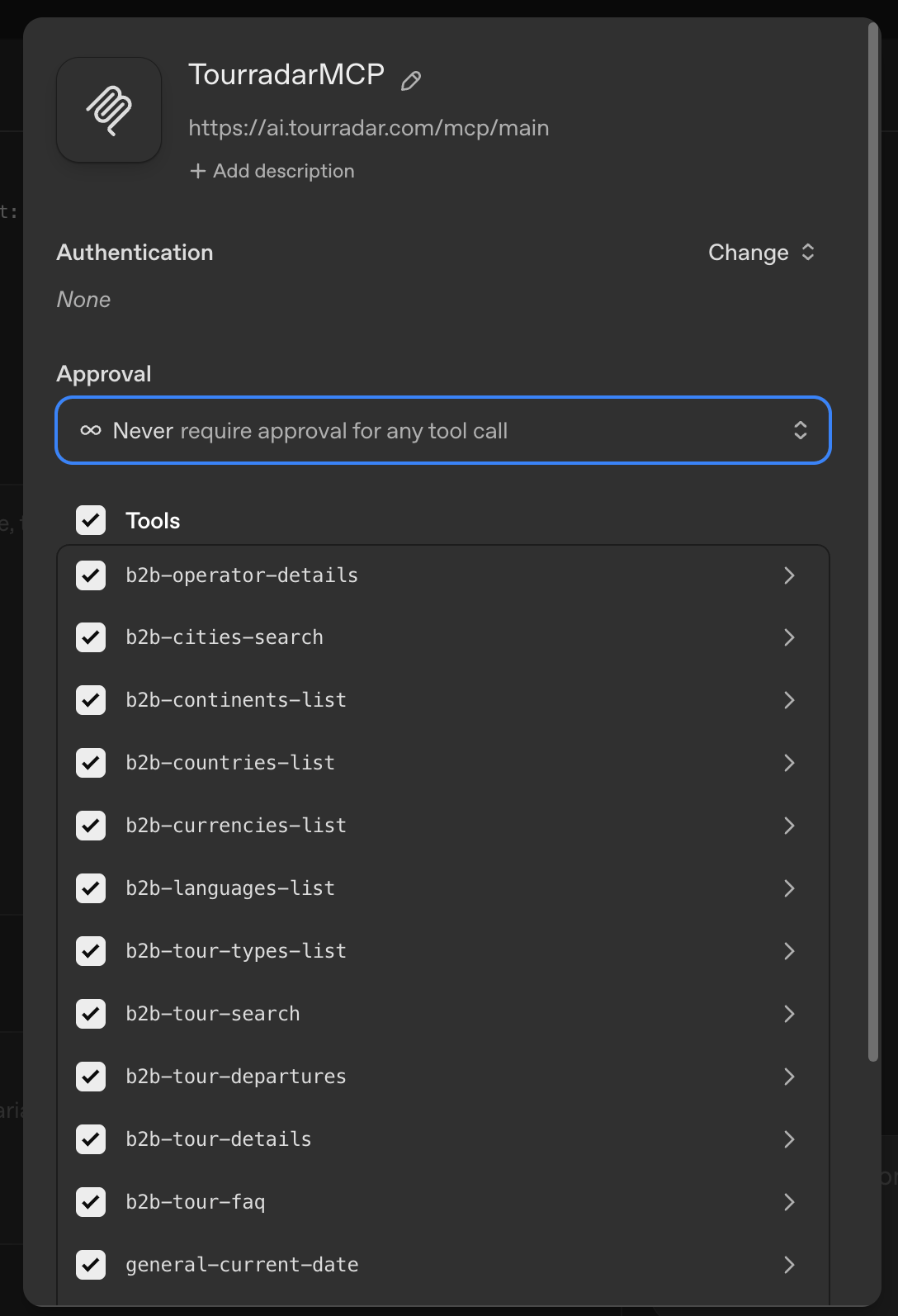
5. On the next screen, set Approval to None and click Add
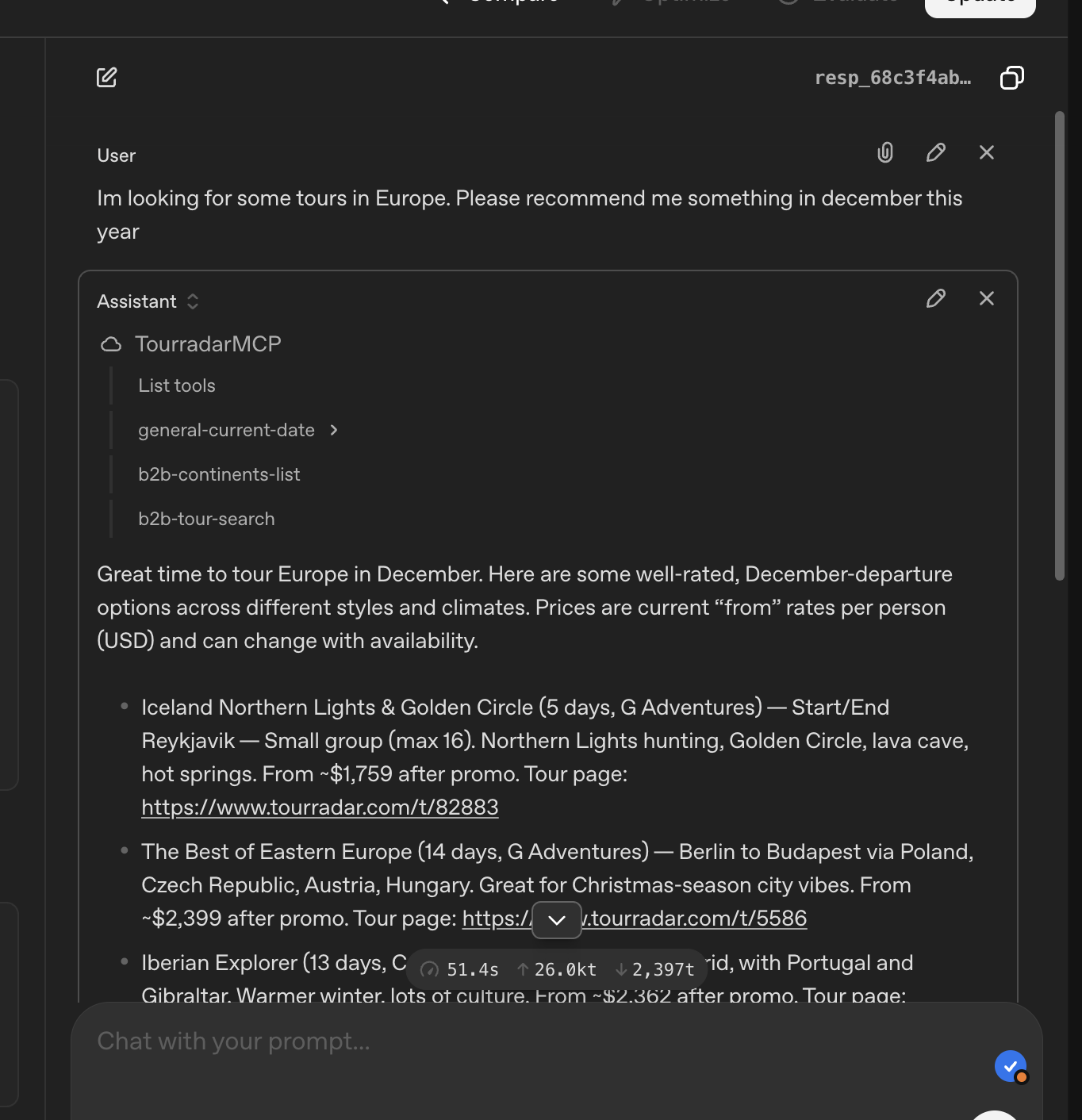
6. Done! You can now start asking questions
MCP Server: Features and Limitations
ChatGPT
The ChatGPT MCP integration is still in its early stages. Right now, it can search for tours and works best with your first prompt.
If you try a new prompt about completely different tours, ChatGPT often generates inaccurate or invented information (hallucinations).
This is a known issue within the AI community, and unfortunately, there’s nothing that can be done other than to wait for OpenAI to resolve it.
Another option is to use MCP SuperAssistant and connect to our main MCP server.
MCP server
The MCP server, whether accessed via Cursor or desktop apps like Claude Desktop or ChatGPT Desktop, has no limitations. It is fully functional, offering its full potential.
List of features:
1. Searching tours based on the tour parameters (Prompt example: Search for tours in Austria that depart in Sempteber 2026)
2. Searching based on text (Prompt example: Tell me more about Europe Escape tour)
3. Making a booking (Prompt example: Please make a booking for Europe Escape tour for 2 people)
4. Downloading a brochure (Prompt example: Please send me the brochure for Europe Escape tour)
A2A server
The A2A server is a protocol developed by Google for communication between AI models. Unfortunately, it’s still in a very early stage, and Google has not yet made it possible to connect A2A agents to their models (Gemini).
Since it’s still early, we’re waiting on Google to enable wider use of the protocol.
At the moment, the only one way to use this protocol is through the A2A Inspector.
A2A configuration: https://ai.tourradar.com/.well-known/agent.json